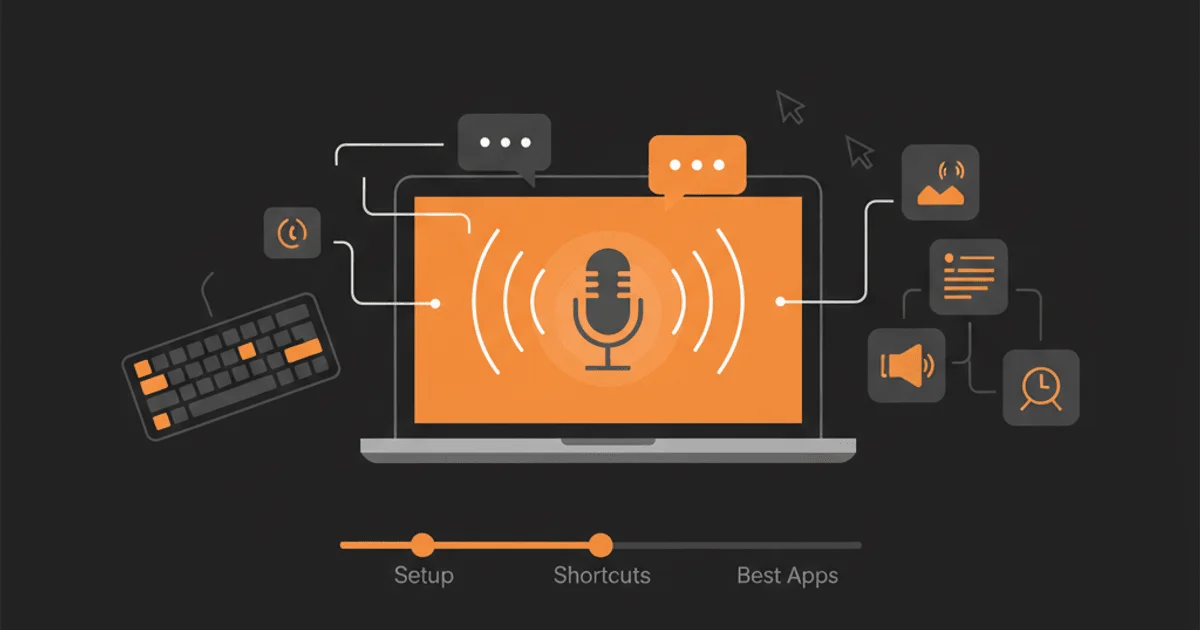
Your Mac can turn your voice into text. But the built-in tool has real limits. Here’s everything you need to know, from basic setup to better alternatives that actually work in every app.
TL;DR
- macOS has free built-in dictation (System Settings > Keyboard > Dictation)
- It works for basic use but depends on the cloud, struggles with technical terms, and fails in some apps like Terminal
- The default shortcut is pressing the Globe (Fn) key twice
- Third-party tools like TypeVox offer local, faster, more reliable dictation with no cloud dependency
- This guide covers setup, shortcuts, every voice command, troubleshooting, and the best alternatives for 2026
How to Turn On Dictation on Mac
Dictation is built into every Mac running macOS Ventura or later. Here’s how to enable it.
Step 1: Open System Settings
Click the Apple menu in the top-left corner of your screen, then select System Settings.
Step 2: Navigate to Keyboard > Dictation
In the sidebar, click Keyboard. Scroll down to the Dictation section.
Step 3: Toggle Dictation On
Click the toggle to enable Dictation. macOS will ask you to confirm, since dictation data is sent to Apple’s servers for processing.
Choosing Your Language
You can add multiple languages for dictation. Click the Language dropdown and select Add Language. macOS supports dozens of languages including English, French, Spanish, German, and Mandarin. You can switch between them on the fly while dictating.
A Note on Privacy
When you enable standard dictation, your voice data is sent to Apple’s servers for processing. Apple states this data is used to improve Siri and dictation services. If privacy matters to you, this is worth knowing. Tools like TypeVox process everything locally on your Mac. Your voice never leaves your machine.
How to Use Dictation on Mac
Using dictation is straightforward. Place your cursor in any text field, activate dictation, and start speaking.
The Basic Workflow
- Click where you want text to appear
- Press your dictation shortcut (Globe key twice by default)
- A small microphone icon appears near your cursor
- Start speaking naturally
- Press the shortcut again or click Done to stop
On Macs with Apple Silicon (M1, M2, M3, M4), you can keep typing while dictation is active. The two input methods work simultaneously without conflict.
Where Dictation Works (and Where It Doesn’t)
Built-in dictation works in most native macOS apps: Pages, Notes, Mail, TextEdit, Safari text fields, and Microsoft Word.
But it has blind spots. Dictation often fails or behaves unpredictably in:
- Terminal and iTerm2 — the input method doesn’t support standard text insertion
- Some Electron apps — Slack desktop, VS Code, and other Electron-based apps can drop words or ignore dictation entirely
- Password fields — blocked for security reasons (this one makes sense)
- Some web forms — complex JavaScript-based editors sometimes reject dictation input
For apps where built-in dictation doesn’t work reliably, tools like TypeVox use a different text insertion method. TypeVox tries clipboard-based insertion first, falls back to the Accessibility API, and then to keystroke simulation. This cascade approach means it works in Terminal, VS Code, Electron apps, and virtually every text field on your Mac.
Mac Dictation Keyboard Shortcuts
The default shortcut is pressing the Globe (Fn) key twice quickly. But you can customize it.
Changing the Shortcut
Go to System Settings > Keyboard > Dictation. Under Shortcut, choose from:
- Press Globe Key Twice (default)
- Press Control Key Twice
- Press Right Command Key Twice
- Press Either Command Key Twice
You can also set a custom key combination.
Quick Reference Table
| Action | Shortcut |
|---|---|
| Start/stop dictation | Globe (Fn) twice |
| Start dictation (alternative) | Edit > Start Dictation |
| Stop dictation | Press Escape |
| Switch language during dictation | Click the language icon next to the microphone |

TypeVox Approach
TypeVox uses a simpler model: hold the Right Option key, speak, release. Text appears when you release the key. No double-tap, no mode switching, no waiting for a timeout. One key, one action.
Voice Commands for Punctuation and Formatting
macOS dictation supports voice commands for punctuation and basic formatting. Here’s the complete reference.
Punctuation Commands
| Say This | You Get |
|---|---|
| ”period” or “full stop” | . |
| “comma” | , |
| “exclamation mark” | ! |
| “question mark” | ? |
| “colon” | : |
| “semicolon” | ; |
| “ellipsis” | … |
| “dash” or “hyphen” | - |
| “open parenthesis” | ( |
| “close parenthesis” | ) |
| “open bracket” | [ |
| “close bracket” | ] |
| “open quote" | " |
| "close quote" | " |
| "apostrophe” | ‘ |
| “at sign” | @ |
| “hashtag” or “pound sign” | # |
| “ampersand” | & |
| “asterisk” | * |
| “percent sign” | % |
Formatting Commands
| Say This | Result |
|---|---|
| ”new line” | Moves to the next line |
| ”new paragraph” | Starts a new paragraph |
| ”tab key” | Inserts a tab |
| ”all caps on/off” | Toggles ALL CAPS |
| ”caps on/off” | Toggles Capitalization |
Editing Commands
| Say This | Result |
|---|---|
| ”delete” | Deletes the last word |
| ”select all” | Selects all text |
| ”undo” | Undoes the last action |
Emoji Dictation
You can dictate emoji by saying their name: “happy face,” “thumbs up,” “heart.” macOS will insert the corresponding emoji. This works best in English and may not recognize all emoji names.
Limitations of Built-in Mac Dictation
macOS dictation is free and convenient. But it has real limitations that matter if you use dictation seriously.
Cloud Dependency
Standard dictation sends your audio to Apple’s servers. No internet, no dictation. If Apple’s servers are slow or down, dictation lags or fails. Enhanced Dictation (which worked offline) was removed in macOS Catalina and never came back in the same form.
Accuracy with Technical Terms
Say “React” and you might get “react.” Say “useState” and you’ll get “use state.” Say “Kubernetes” and good luck. macOS dictation has no custom vocabulary. It doesn’t know your tech stack, your product names, or your industry jargon.
TypeVox solves this with a custom vocabulary system. You define corrections like “next js” to “Next.js” or “supabase” to “Supabase,” and they’re applied automatically after every transcription.
No Per-App Configuration
You can’t tell macOS dictation to behave differently in different apps. The same settings apply everywhere. If you want a coding-friendly mode in VS Code and a natural prose mode in Pages, built-in dictation can’t do that.
TypeVox offers four dictation modes (Normal, Coding, Prompting, Clean Prose) and lets you set rules per application. Your Terminal can default to Coding mode while Mail defaults to Normal.
Doesn’t Work Everywhere
As noted above, Terminal, some Electron apps, and certain web forms don’t play well with macOS dictation. If you work in these environments daily, this is a dealbreaker.
30-Second Silence Timeout
If you pause for more than 30 seconds, dictation stops automatically. You have to reactivate it. For long-form dictation or thinking while speaking, this interrupts your flow.
Best Dictation Apps for Mac (2026)
If built-in dictation isn’t enough, here are the top alternatives.
| App | Price | Local/Cloud | Best For | Offline |
|---|---|---|---|---|
| TypeVox | $29 once | 100% local | Developers, privacy, everyday dictation | Yes |
| Wispr Flow | $8/mo | Cloud | AI rewriting, 100+ languages | No |
| Superwhisper | $10/mo | Hybrid | Whisper power users | Partial |
| MacWhisper | $29 once | Local | File transcription (not real-time) | Yes |
TypeVox is the best option for users who want fast, private, reliable dictation that works in every app. It runs entirely on your Mac using WhisperKit (Apple’s CoreML-based speech engine), costs $29 once with no subscription, and handles technical vocabulary out of the box.
Wispr Flow is the best choice if you want AI to rewrite and polish your dictation. It sends your audio to the cloud for processing with an LLM, which means better grammar but less privacy.
We’ll publish a full breakdown comparing every Mac dictation app soon.
Mac Dictation Not Working? Common Fixes
Dictation can break for various reasons. Here are the most common fixes.
1. Check Your Internet Connection
macOS dictation requires an active internet connection. No Wi-Fi, no dictation. Test your connection first.
2. Reset Dictation in System Settings
Go to System Settings > Keyboard > Dictation. Toggle it off, wait 10 seconds, toggle it back on. This forces macOS to re-initialize the dictation service.
3. Check Microphone Permissions
Go to System Settings > Privacy & Security > Microphone. Make sure the app you’re trying to dictate in has microphone access.
4. Restart the Dictation Process
Open Activity Monitor, search for “DictationIM” or “SpeechRecognitionCore”, and force quit those processes. macOS will restart them automatically.
5. Check Language Settings
If dictation returns garbled text, your language might be set incorrectly. Go to System Settings > Keyboard > Dictation and verify the selected language matches what you’re speaking.
6. Update macOS
Apple fixes dictation bugs in macOS updates. Make sure you’re running the latest version. As of April 2026, macOS Tahoe 26.3 is the latest release.
7. Try a Local Alternative
If dictation keeps breaking, the problem might be Apple’s service itself. Tools like TypeVox use a completely independent speech engine (WhisperKit) that runs locally on your Mac. It works offline, doesn’t depend on Apple’s servers, and handles technical terms that macOS dictation can’t. Try it free with 300 words per day.
FAQ
Yes. macOS includes built-in dictation at no cost. You can enable it in System Settings > Keyboard > Dictation. There are no usage limits, but it requires an internet connection since audio is processed on Apple's servers.
No. Standard macOS dictation requires an internet connection. Apple removed the offline "Enhanced Dictation" feature in macOS Catalina (2019). If you need offline dictation, third-party tools like TypeVox run entirely on your Mac with no internet required.
The default shortcut is pressing the Globe (Fn) key twice. You can change this in System Settings > Keyboard > Dictation > Shortcut. Options include pressing Control twice, Command twice, or a custom key combination.
Yes. Microsoft Word for Mac supports macOS dictation. Place your cursor in the document, press your dictation shortcut, and start speaking. Word also has its own built-in dictation feature under Home > Dictate, which requires a Microsoft 365 subscription.
For most users, yes. TypeVox ($29 one-time) runs 100% locally, works in every app including Terminal and VS Code, and supports custom vocabulary for technical terms. Wispr Flow ($8/month) adds AI rewriting but requires cloud processing.
Your Mac Can Do Better
Built-in dictation is a starting point. It handles basic text input in standard apps. But if you dictate regularly, you’ll hit its limits fast: cloud dependency, no custom vocabulary, broken in Terminal and many Electron apps, no per-app modes.
TypeVox gives you local, accurate, fast dictation in every app on your Mac. Push a key, speak, release. Your words appear right where your cursor is. No cloud. No account. No subscription.
Download TypeVox for free and get 300 words per day. Upgrade to unlimited for $29, once.